
Getting Started
Thank you once again for your purchase of the Quantum Trading Indicators and welcome to Quantum Trading. We appreciate your business and if you do have any questions please just email us at helpdesk[@]quantumtrading.com and one of our support team will be happy to help you further.
Below are the simple steps you need to take to get started in installing and activating your indicators.
Step 1 – Download
Please click the button below to download the indicator package for TradeStation Securities in ZIP file format:
Download Quantum Trading Indicators for TradeStation Securities - TradeStation platform version 10
Step 2 – Open the ZIP file
Locate the ZIP file in your computer and open its contents using Windows Explorer.
- Right-click the ZIP file you just downloaded.

- In the menu, select Open with > Windows Explorer. This opens a window that displays the contents of the ZIP file: QuantumTradingTS10.dll and QTI-TS10.ELD
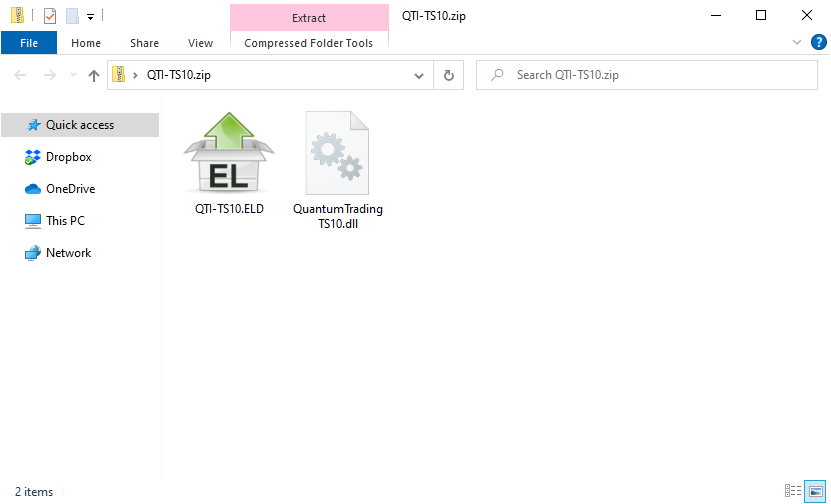
Step 3 – Copy the DLL file to SysWOW64 folder
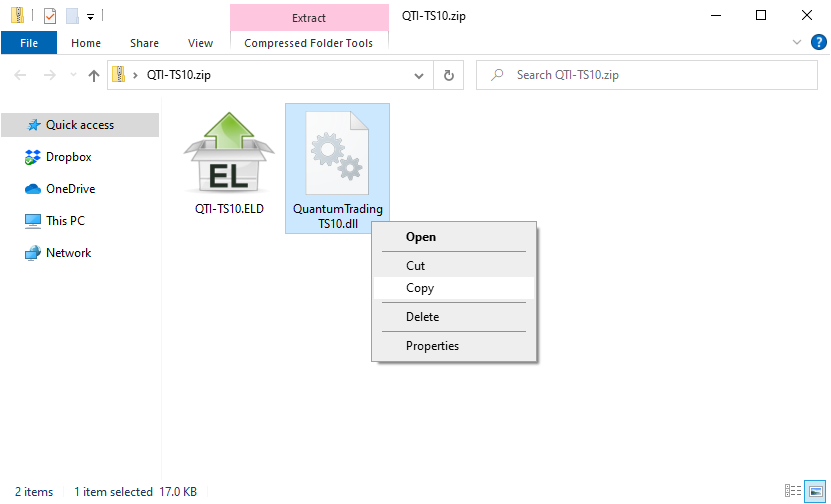
- Right-click the DLL file (QuantumTradingTS10.dll) then select Copy.
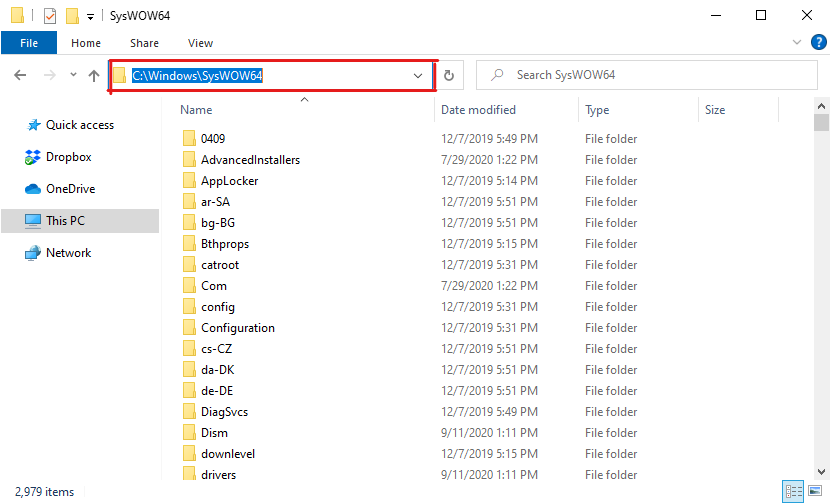
- Open Windows Explorer or any folder in your computer then in the address bar, please enter and search C:\Windows\SysWOW64
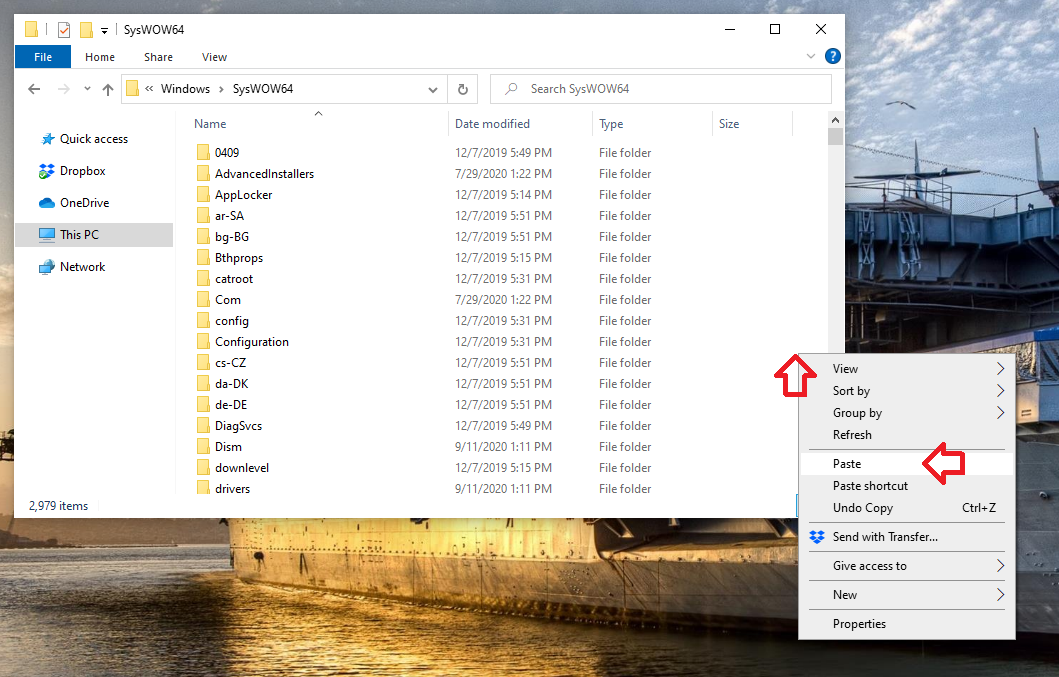
- Paste in this folder the DLL file. (right-click in the blank space in the folder and select Paste)
Step 4 – Install the ELD file
- Open your TradeStation client and login to your account
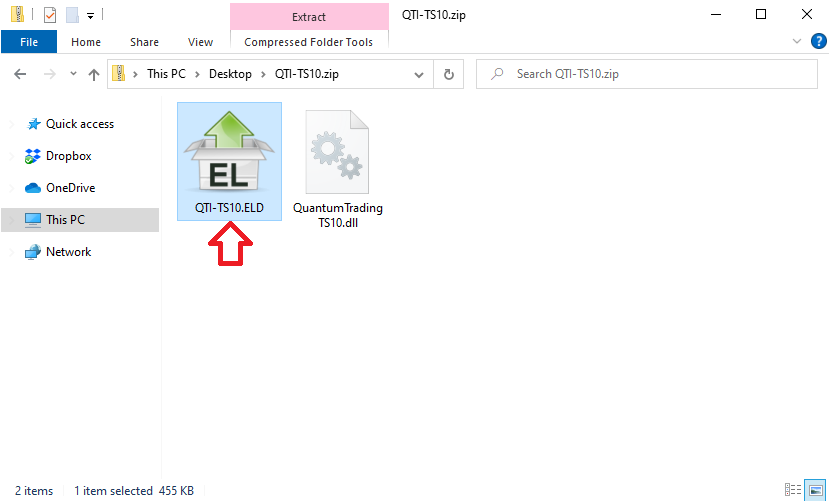
- Go back to the opened ZIP file and double-click the ELD file (QTI-TS10.ELD) to start importing the indicators into your platform.
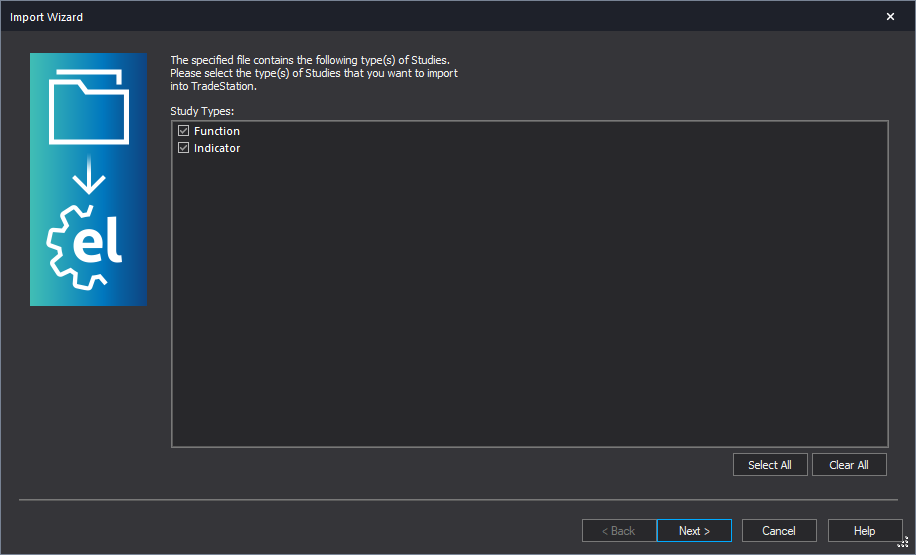
- Select all Study Types then click Next and follow the on-screen instructions until they are completed.
Step 5 – Activate the indicator
Open a Chart Analysis window and run a Quantum Trading indicator:
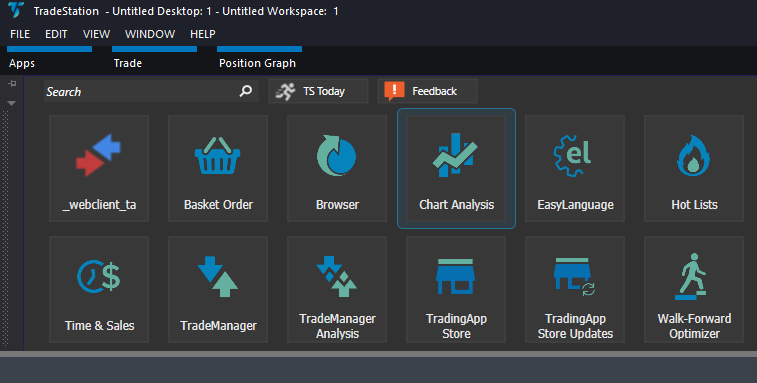
- From the Apps menu of your TradeStation platform, please open a Chart Analysis window.
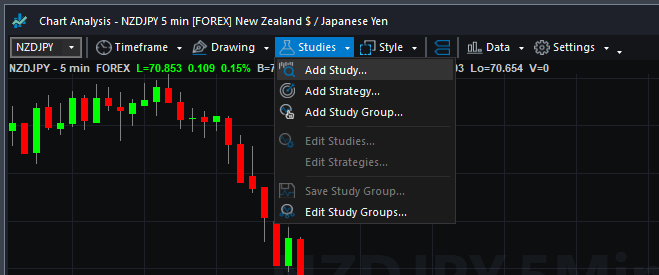
- From the Chart Analysis window’s toolbar, please click Studies > Add Study…
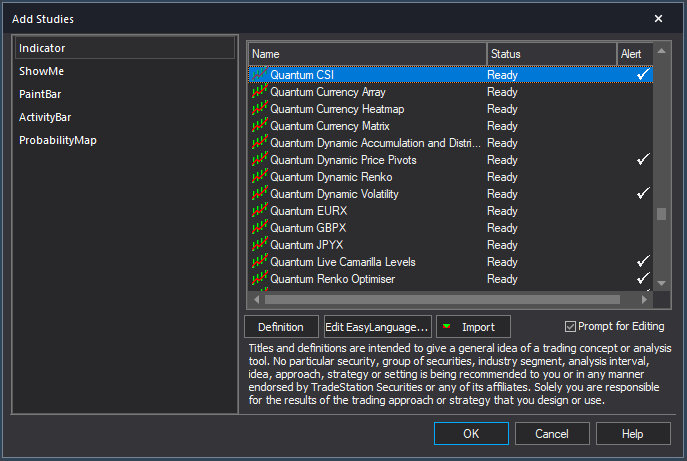
- From the Add Study window, please choose Indicator at the left hand side of the interface then at the right, scroll down and select the Quantum Trading indicator you purchased (example: Quantum CSI). Click OK to apply the indicator to the chart.
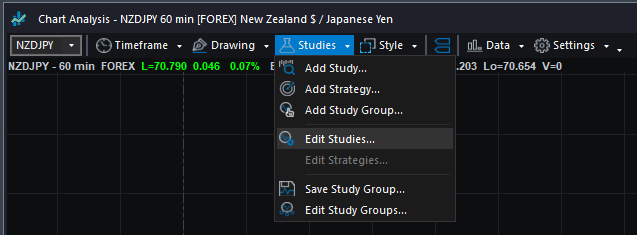
- The indicator will not work initially while it is not yet activated. To activate your indicator, please go back to your Chart Analysis window and click Studies > Edit Studies…
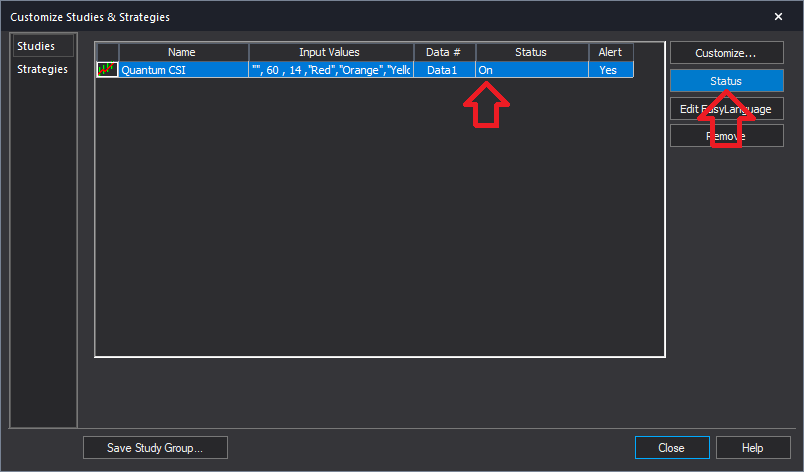
- Select the indicator from the list then turn it On by clicking the Status button at the right hand side of the window.
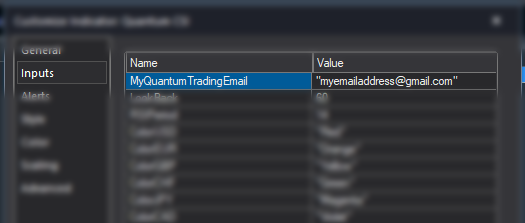
Click Customize… or double-click the indicator to open the Customize Indicator window. In the Inputs section, find the MyQuantumTradingEmail input and enter here the email address you used at the Quantum Trading Shop to activate the indicator. PLEASE MAKE SURE TO ENCLOSE THE EMAIL ADDRESS IN DOUBLE QUOTATION MARKS. (example: “myemailaddress@gmail.com”)
- Click OK (and Close) to save and go back to your chart. Please note that you need to do this only once which means you do not need to input your email address again when running Quantum Trading indicators next time.
Congratulations! You have installed the Quantum Trading indicator in your TradeStation Securities platform.